Trading instantly from your Binance Wallet is a game-changer for anyone looking to react quickly to market moves, especially as crypto volatility ramps up in 2025. Whether you’re chasing the latest AI token narratives or simply want to convert your holdings into stablecoins on the fly, Binance’s streamlined interface makes instant trading accessible for beginners and seasoned traders alike. In this guide, I’ll walk you through how to execute rapid-fire trades directly from your wallet, no more missed opportunities because of clunky navigation or hesitation.
Binance Wallet Trading Guide: Getting Set Up
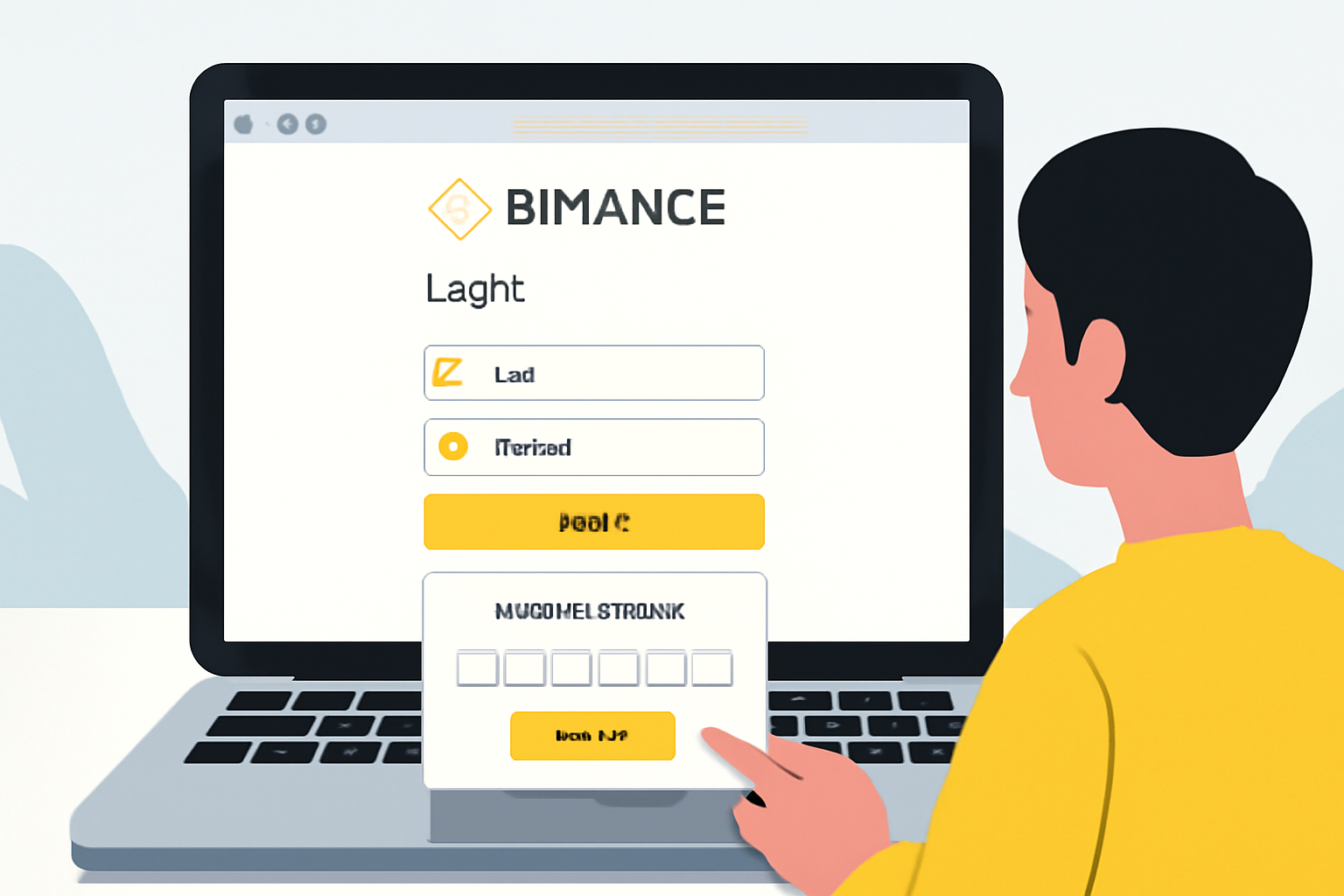
Before you can make your first instant trade, you need to ensure your account is ready and secure. Head over to Binance and log in with your credentials. If you’re new, complete registration and enable two-factor authentication (2FA). Security is paramount, never skip this step.
Once inside, navigate to “Wallet” then “Fiat and Spot” from the dashboard. This is where all your assets live and where you’ll initiate most transactions. For a deeper dive into accessing and managing your funds, check out the guidance in the Binance Beginner's Guide.
Accessing Instant Trades: From Wallet to Market in Seconds
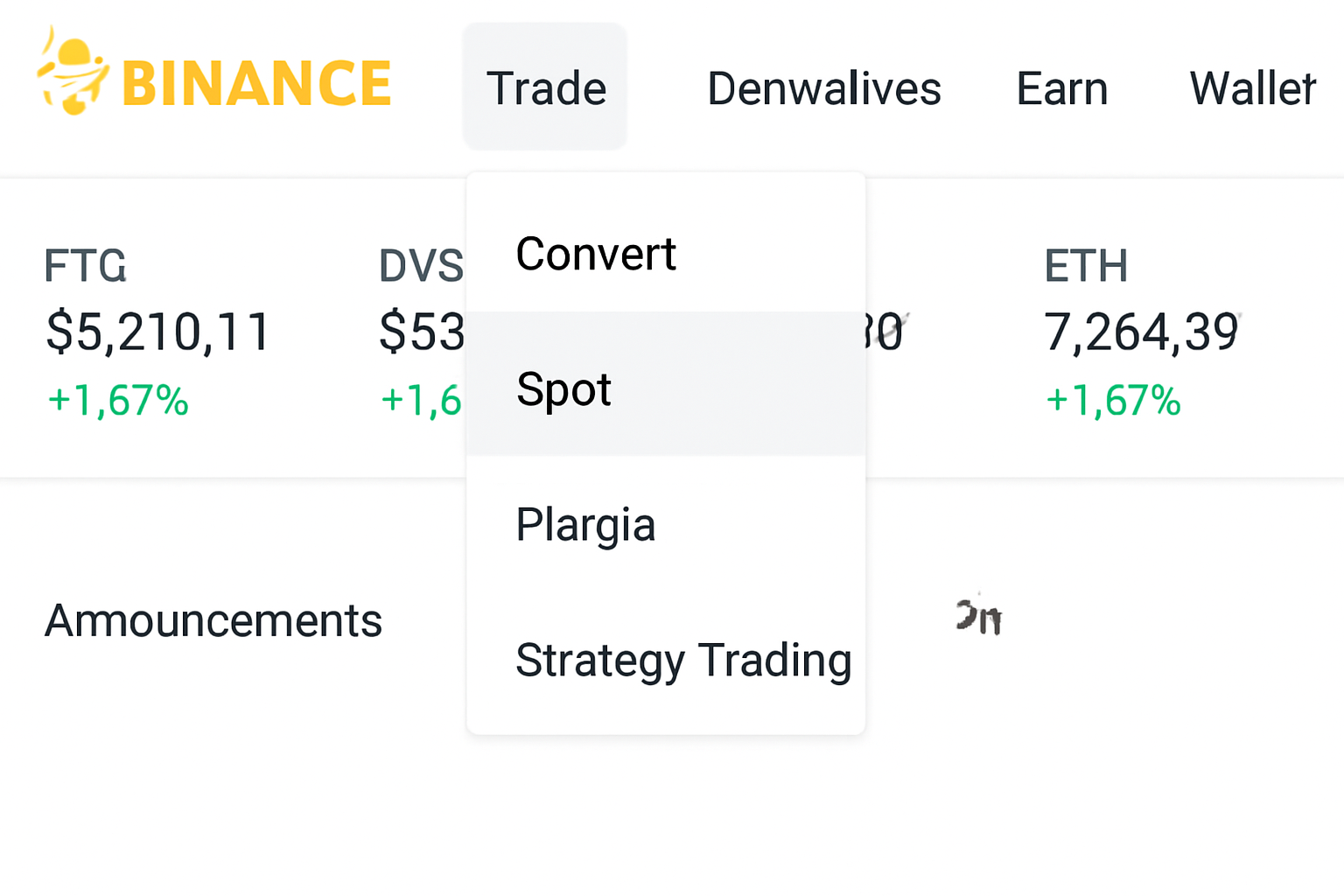
To trade instantly, hover over the "Trade" tab at the top of Binance’s dashboard and select "Spot. " This launches the main trading interface, a space that can look intimidating at first but is surprisingly intuitive once you know what to look for.
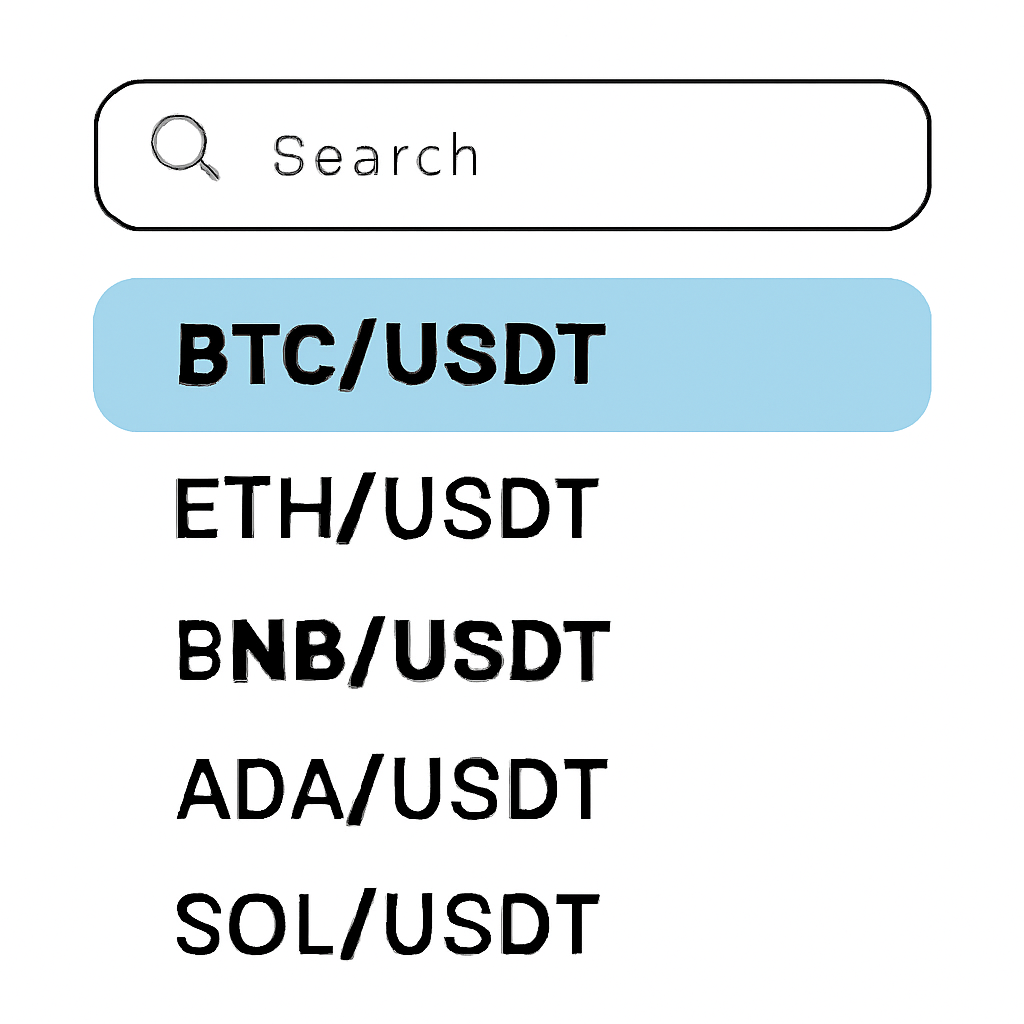
On the left side, use the search bar to find your desired trading pair (for example, BTC/USDT if you want to swap Bitcoin for Tether). Click on it, and watch as live price action updates in real time. The middle panel displays charts and order books, don’t get lost here if you’re after speed; we’re focusing on instant execution.
Executing Your First Instant Trade (Market Order)
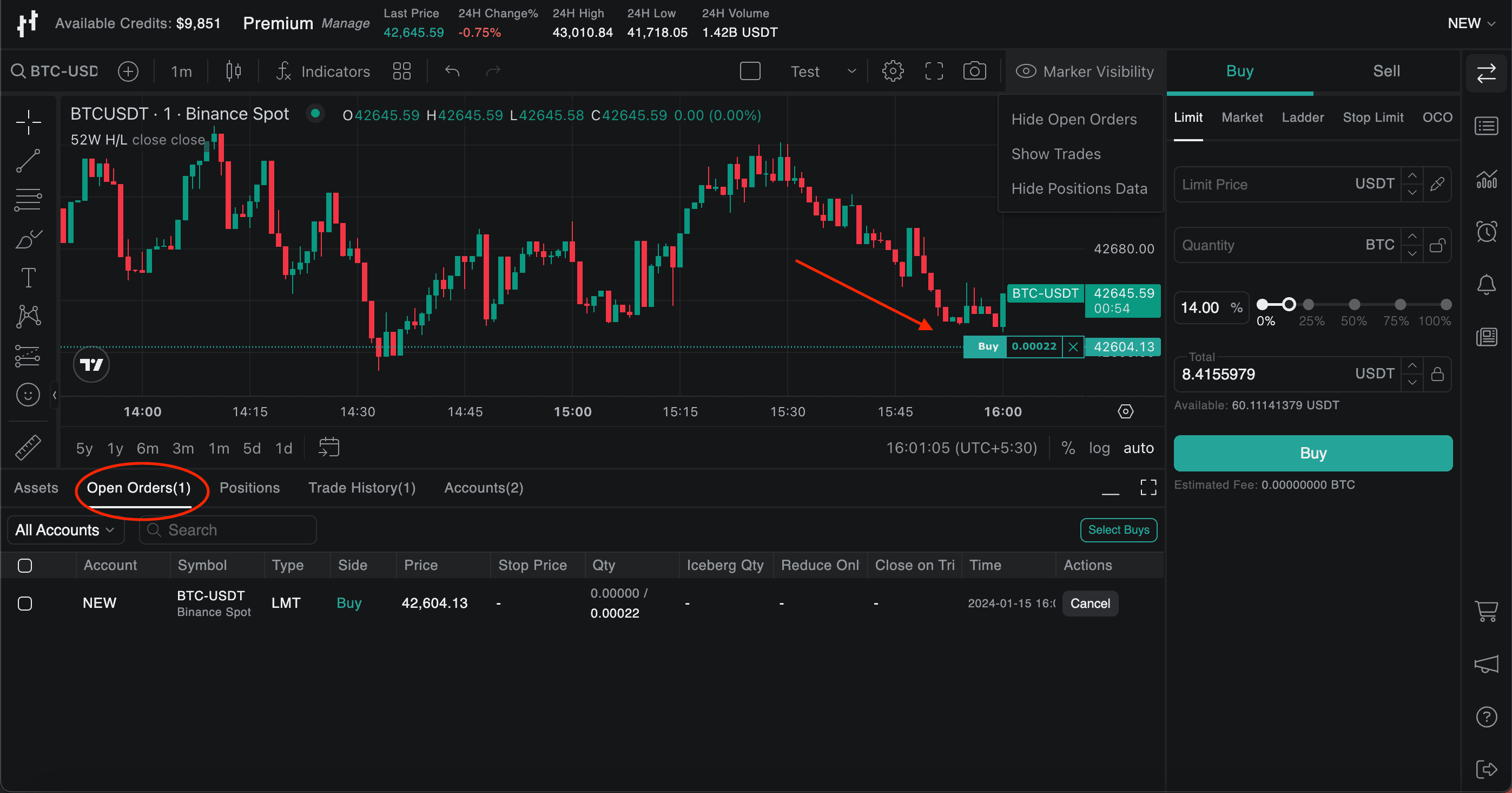
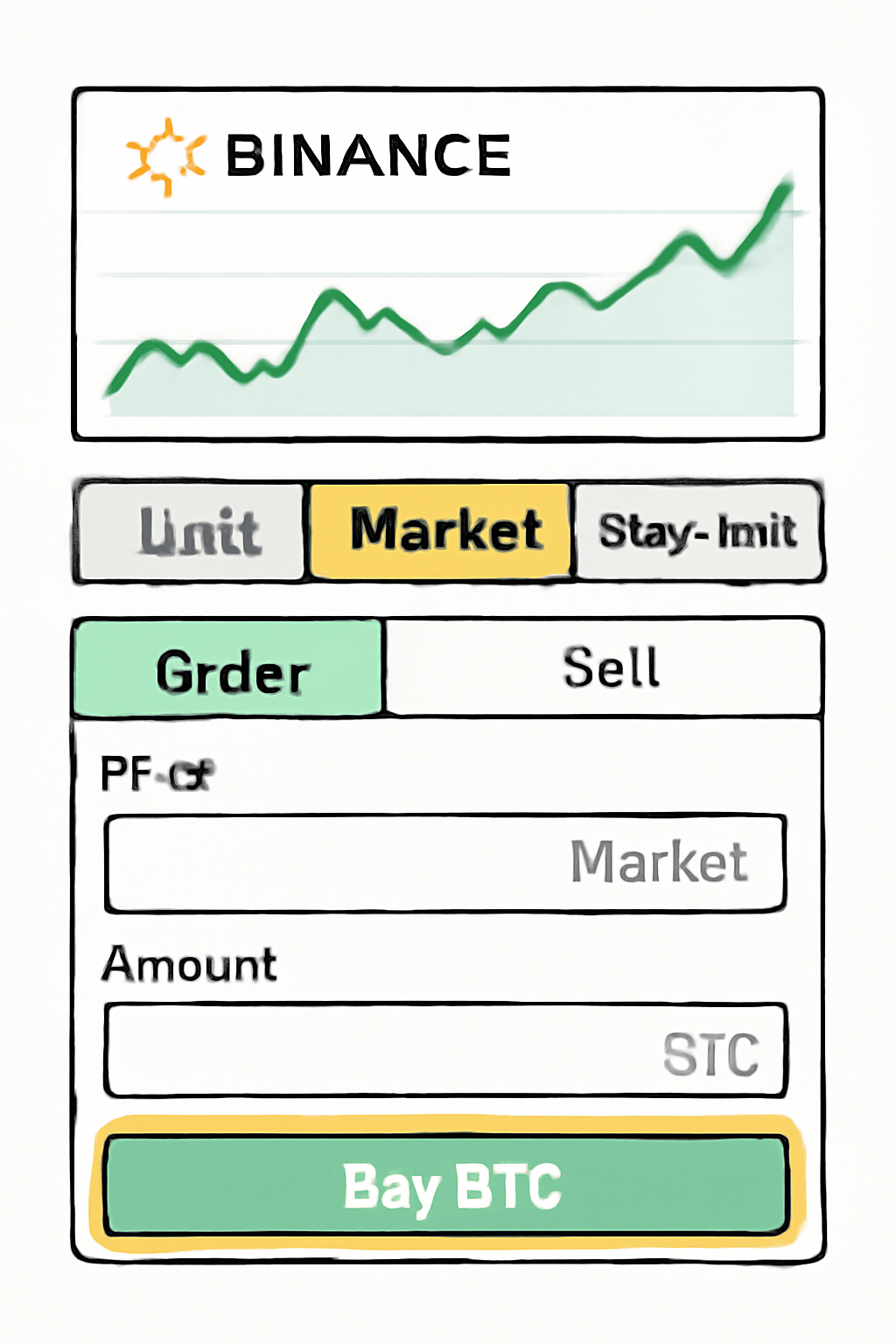
This is where things get exciting. Below the price chart sits the order placement section. Select the "Market" tab, this tells Binance that you want your trade executed immediately at whatever price is currently available. Unlike limit orders (which can sit unfilled), market orders guarantee execution but may have minor slippage due to fast-moving prices.
How to Instantly Place a Market Order on Binance Spot
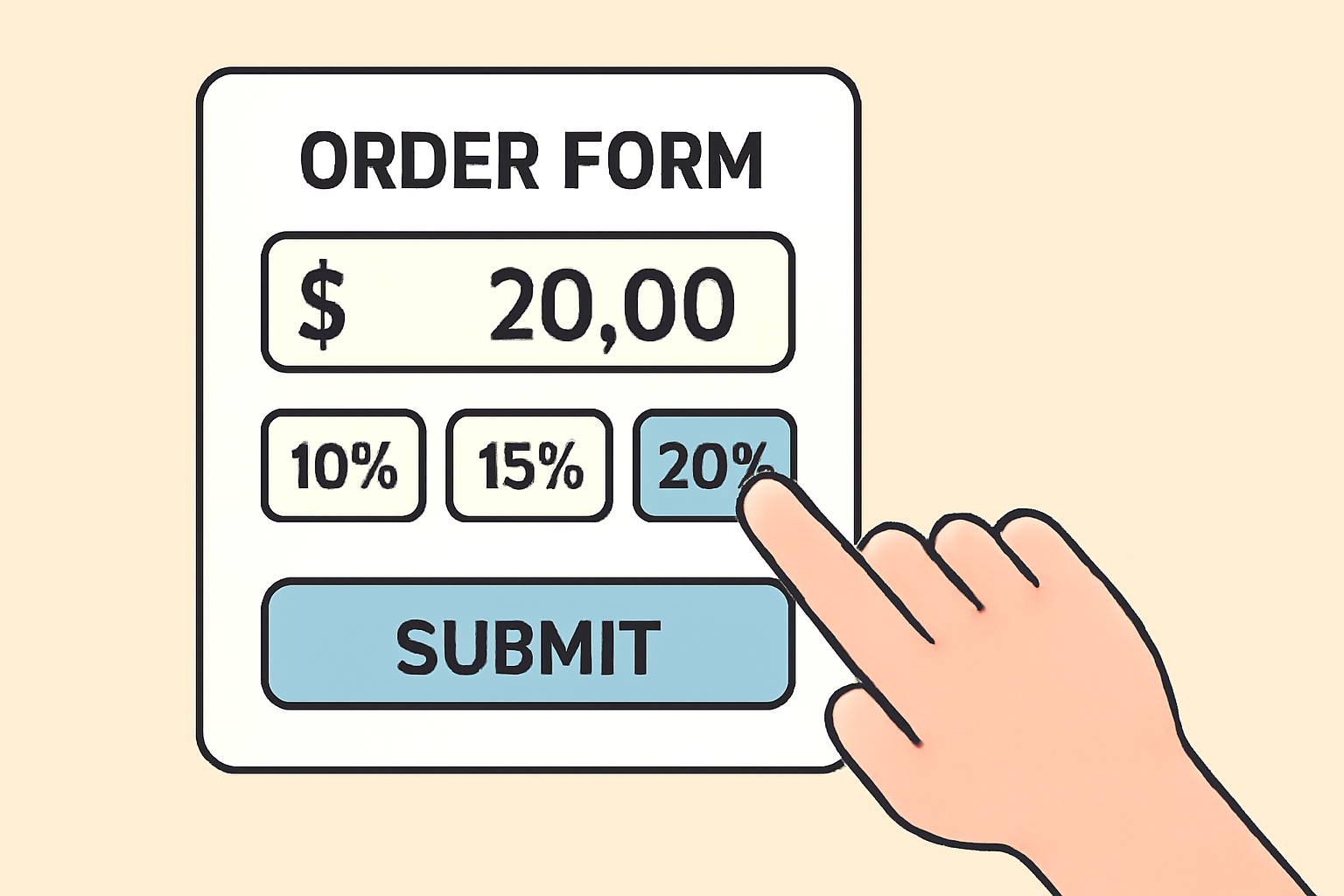
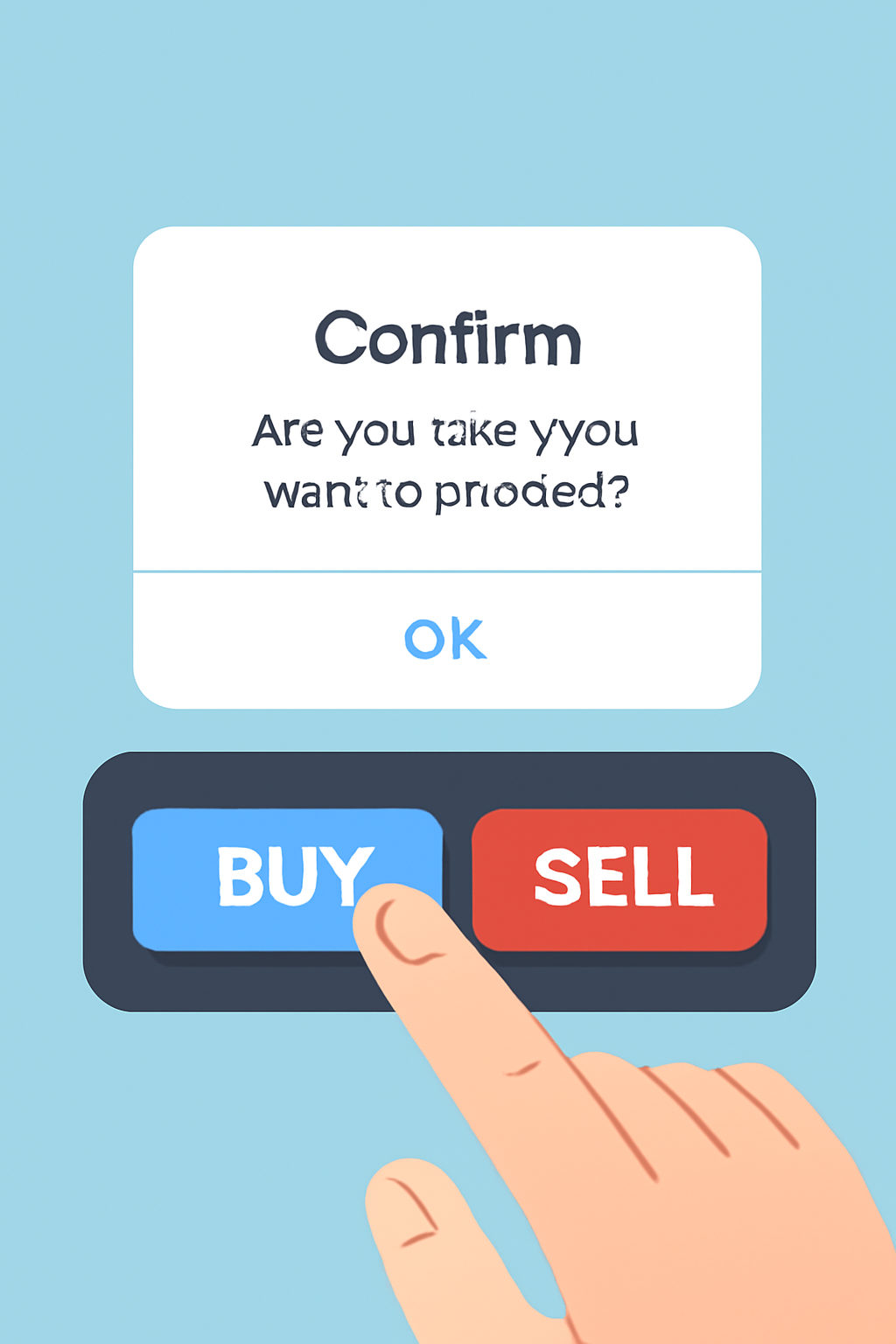
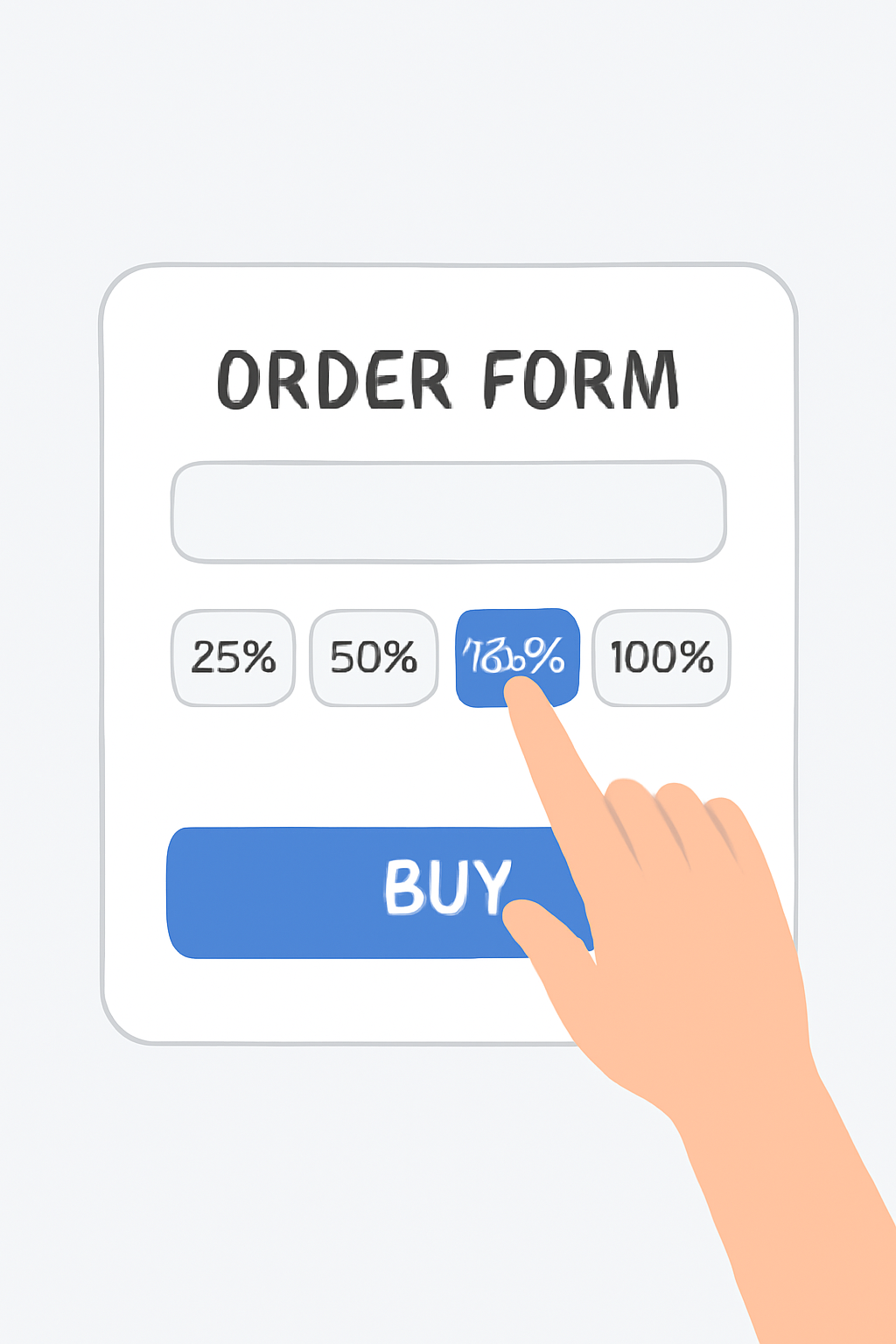
Input how much crypto you want to buy or sell in the "Amount" field, or use those handy percentage buttons (25%, 50%, 75%, 100%) if you want to move a chunk of your balance quickly. Double-check everything before hitting “Buy
Instant Spot Trading from Your Binance Wallet: A Visual Walkthrough
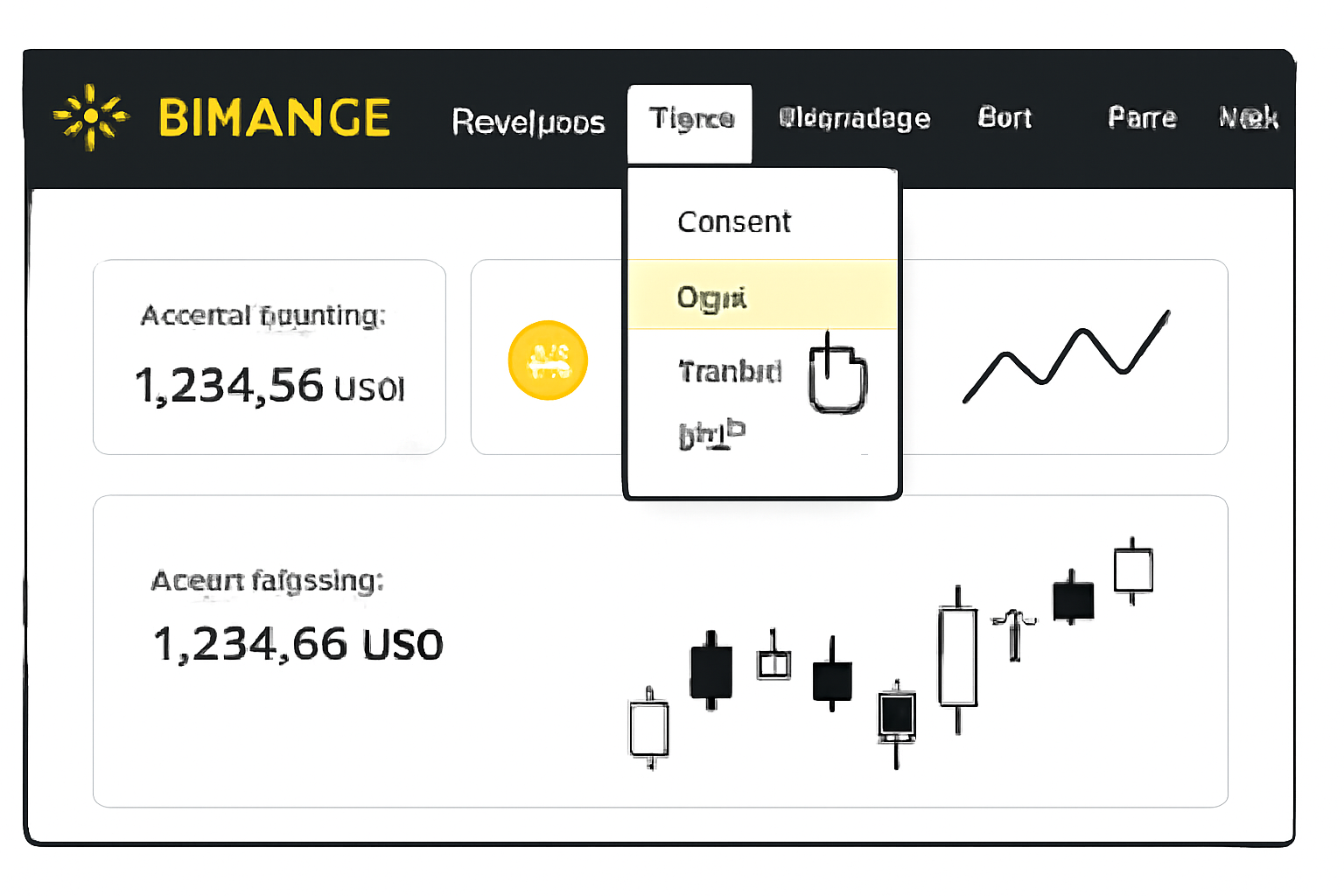
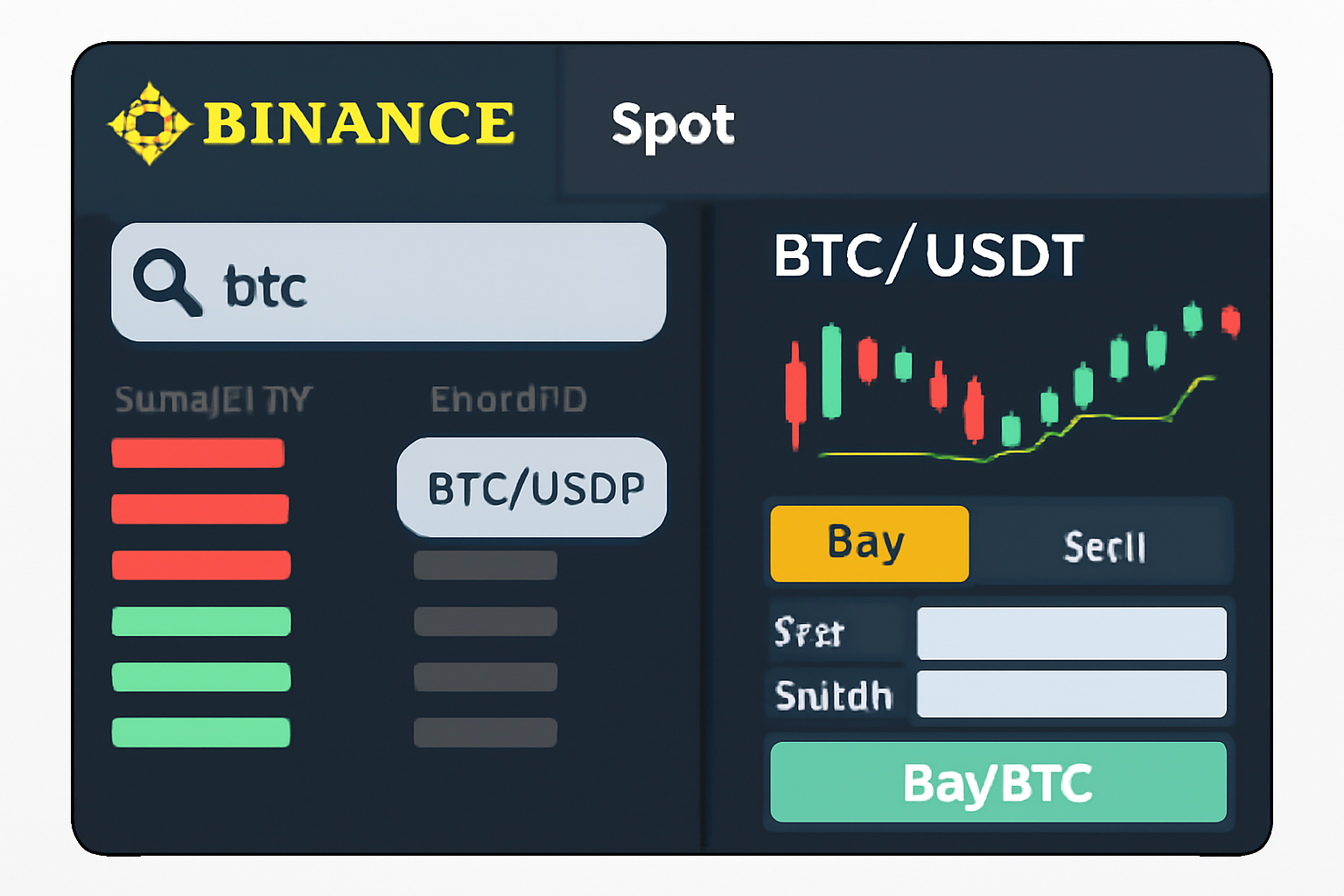
If you're aiming for mastery over every feature in your crypto wallet, including advanced analytics or integrating AI-powered market signals, take time exploring each tab of Binance’s interface. The platform evolves rapidly; what was cutting-edge last year might be standard today! Stay nimble by revisiting guides like this one whenever new features roll out.
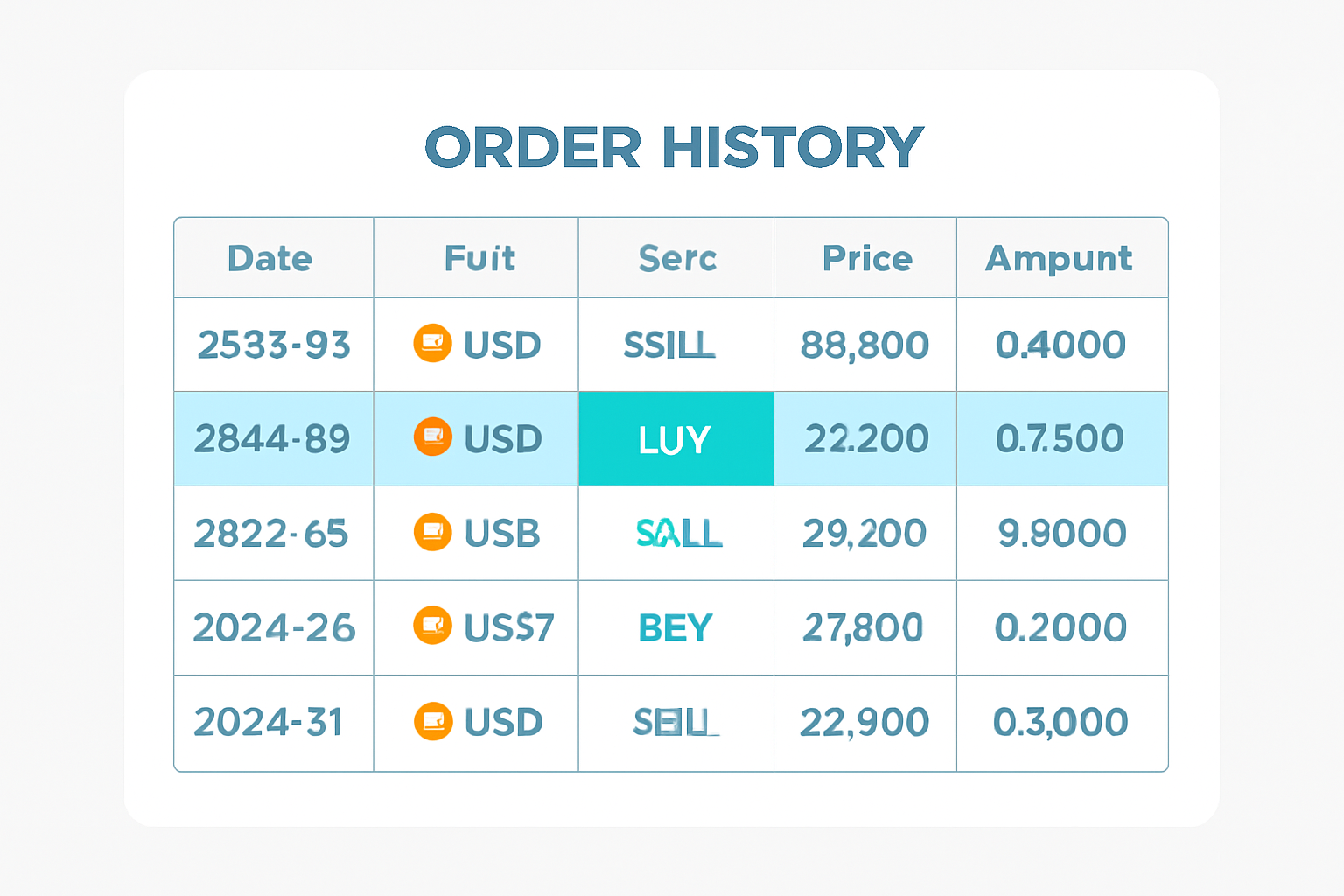
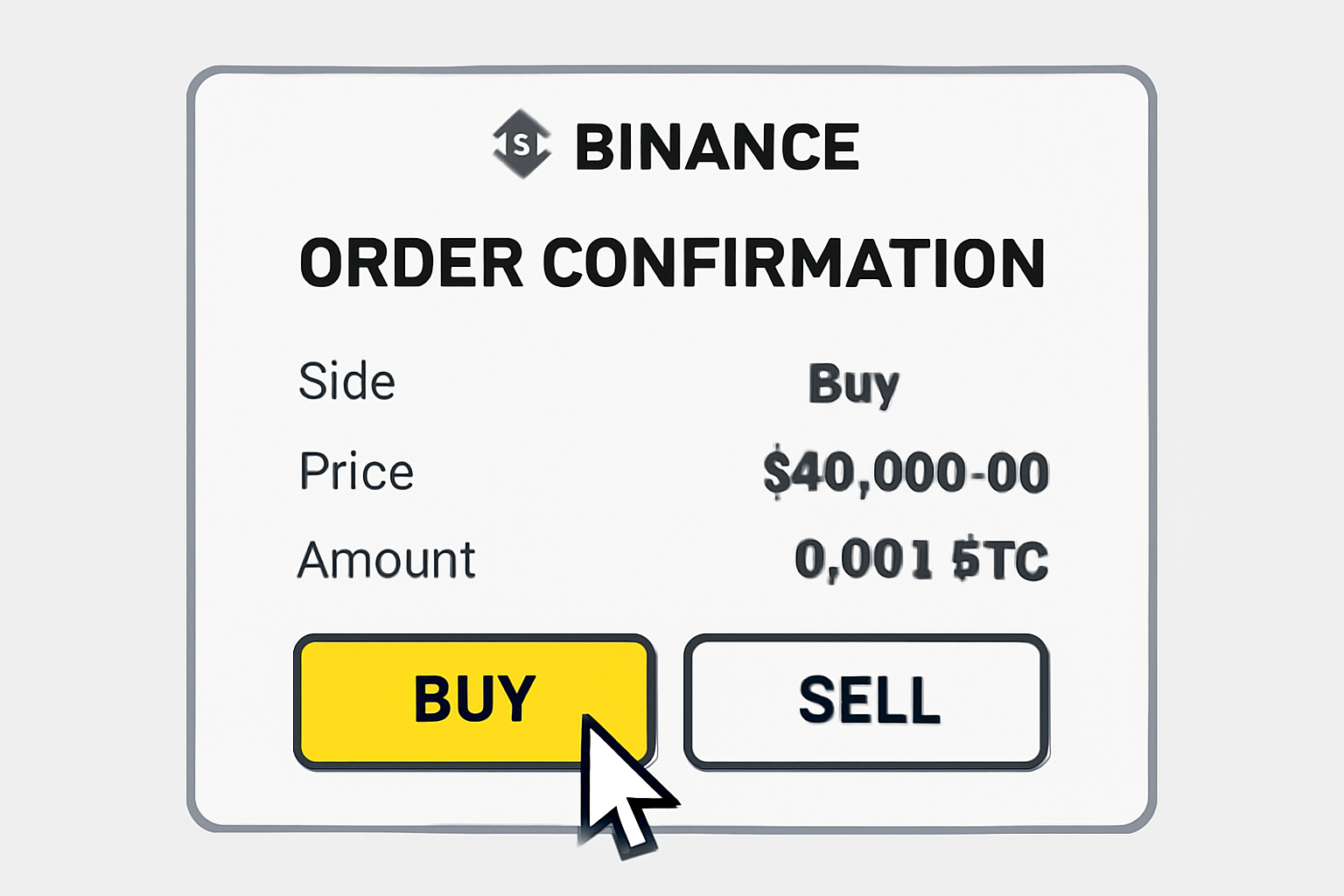
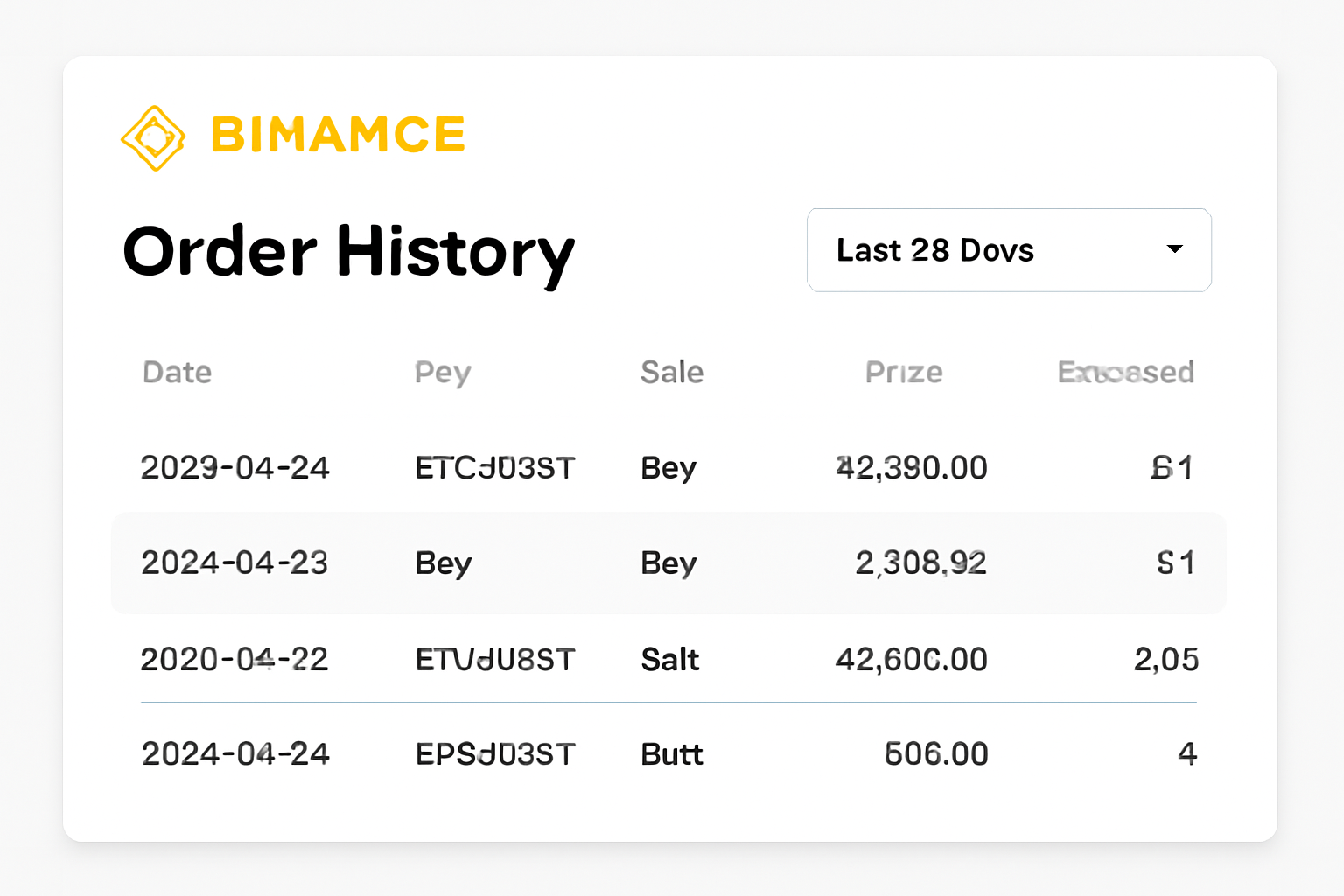
After executing your instant market order, Binance processes your trade in seconds. You’ll see a confirmation pop-up, and the new balance will be reflected immediately in your Fiat and Spot wallet. For transparency and peace of mind, always check your Order History or Trade History: these tabs log every move you make, down to the exact millisecond. If you’re trading AI tokens or jumping on trending narratives, this speed is essential for staying ahead of the curve.
Beyond the Basics: Tips for Smarter Instant Trades
Now that you’ve nailed the basics of instant trading from your Binance Wallet, let’s elevate your game with some actionable tips:
- Watch for Spread and Slippage: Market orders fill at the best available price, but during high volatility (like sudden surges in AI tokens), spreads can widen. Always glance at the order book before confirming large trades.
- Set Up Price Alerts: Use Binance’s built-in alert features or third-party apps to get notified when a token hits a certain price. This keeps you agile without staring at charts all day.
- Diversify Trading Pairs: Don’t limit yourself to BTC/USDT. Explore ETH pairs, stablecoins, or trending altcoins directly from your wallet interface for more flexible strategies.
- Leverage Social Sentiment Analysis: Integrate tools that analyze Twitter or Reddit trends, Binance often lists tokens that skyrocket on social buzz.
- Stay Updated on Wallet Features: Binance frequently adds new trading options and analytics right inside the wallet dashboard; keep an eye out for updates that can give you an edge.
Security Reminders Every Trader Should Know
No matter how fast you trade, never compromise on security. Double-check URLs before logging in (phishing is rampant), use unique passwords, and keep 2FA enabled at all times. If you’re moving serious funds or day-trading volatile assets, consider upgrading to hardware authentication for another layer of protection.
The ability to execute instant trades directly from your Binance Wallet is a powerful tool, one that puts both speed and flexibility in your hands as crypto markets evolve. Whether you’re riding the latest AI token wave or simply rebalancing into stablecoins during volatility spikes, these steps ensure you never miss a beat. For further reading or if you're ready to dive deeper into advanced strategies and wallet features, revisit resources like the Binance Beginner's Guide.
No comments yet. Be the first to share your thoughts!